October 17, 2020 / Nirav Shah
Login to AWS console and select Service
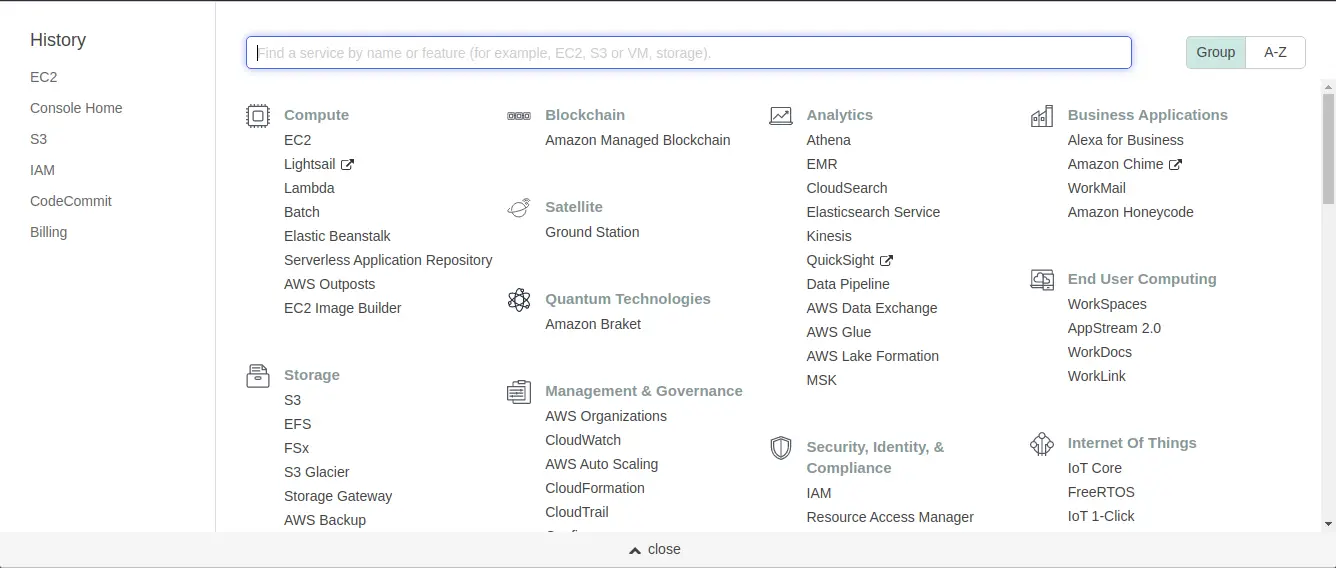
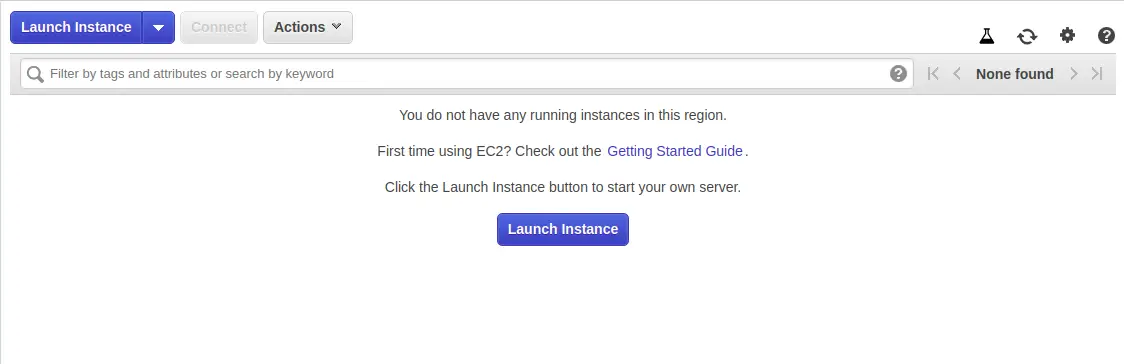
Click on Launch instance
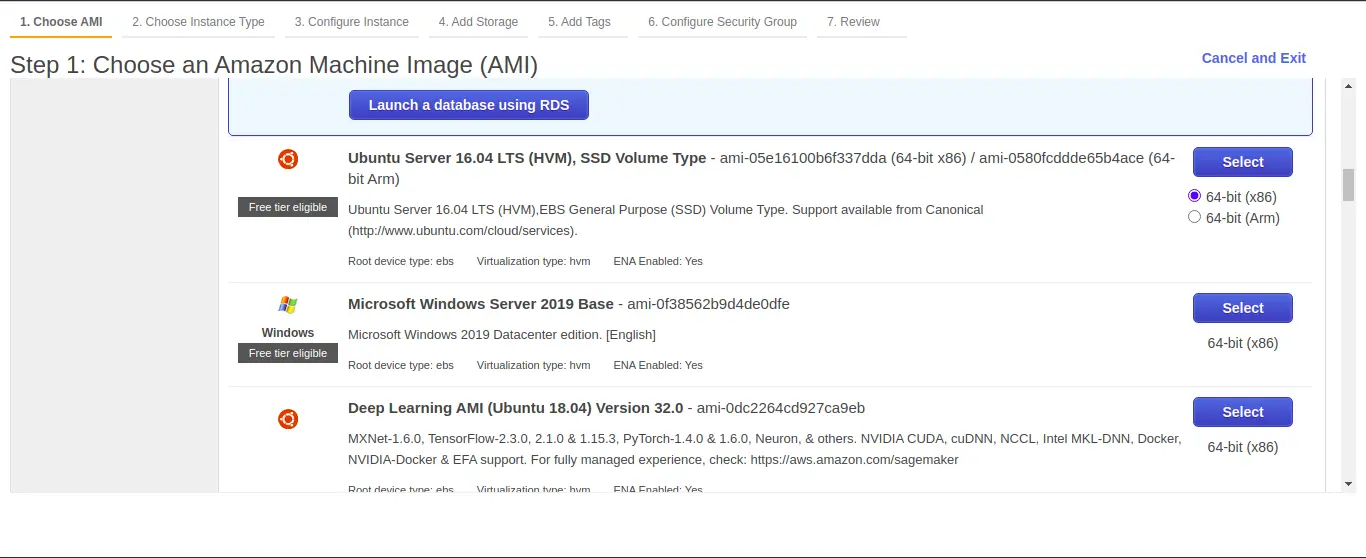
Select the OS/AMI of the server (in our case we have selected Ubuntu)
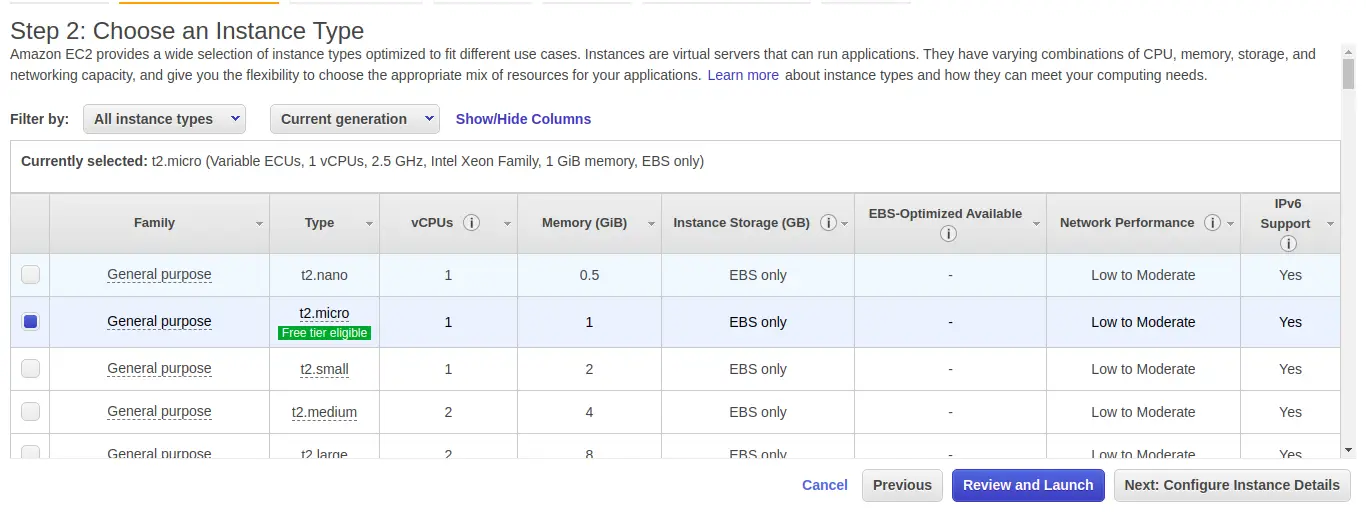
Choose the instance type & click on Next
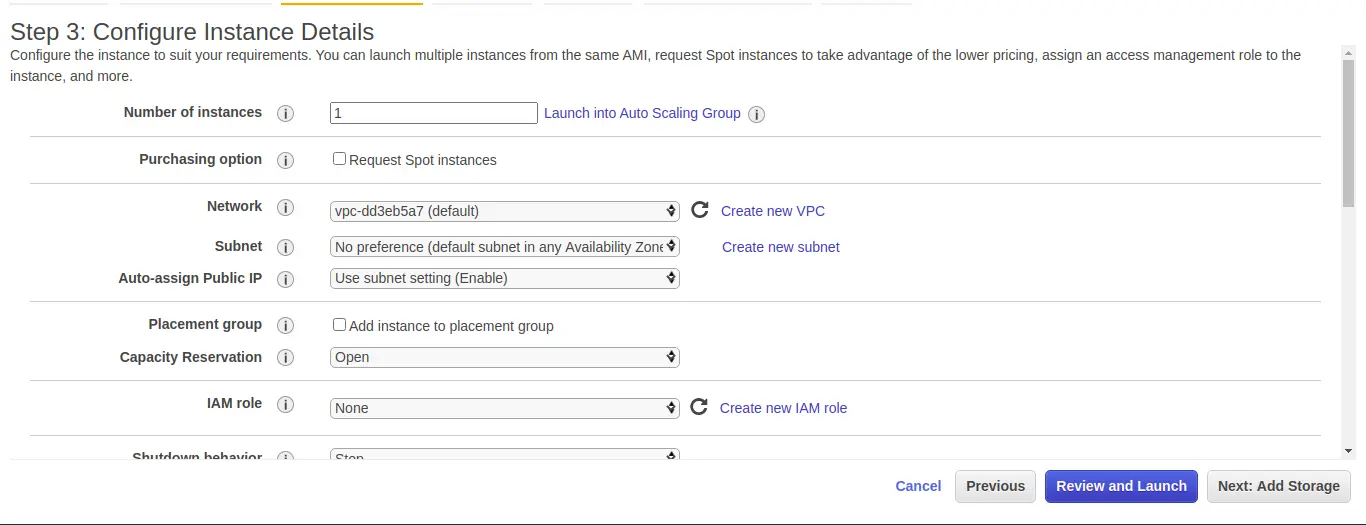
Configure instance details & click on Next
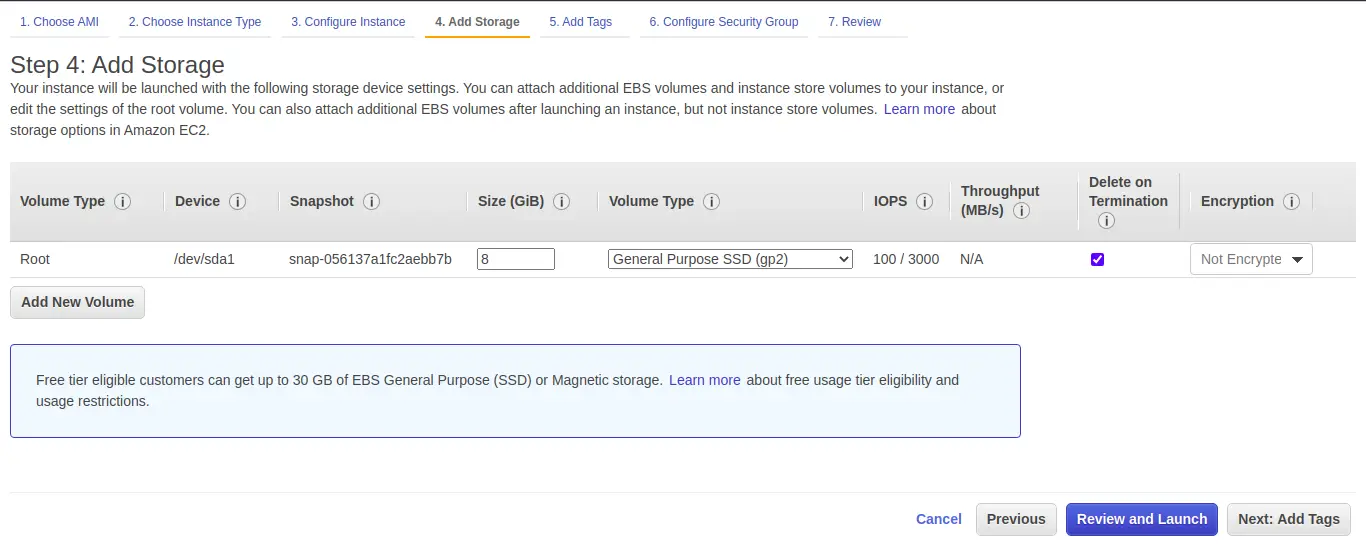
Add Storage & click on Next
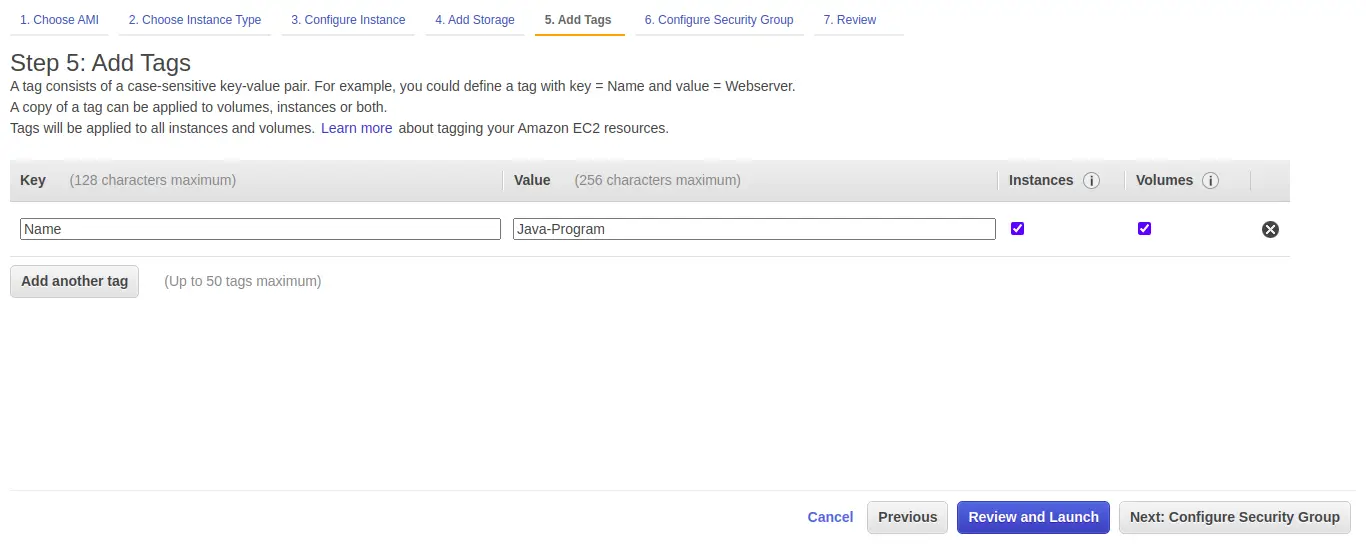
Add tags (In our case, key: Name and value: Java-Program this will help to identify the instance) & click on Next
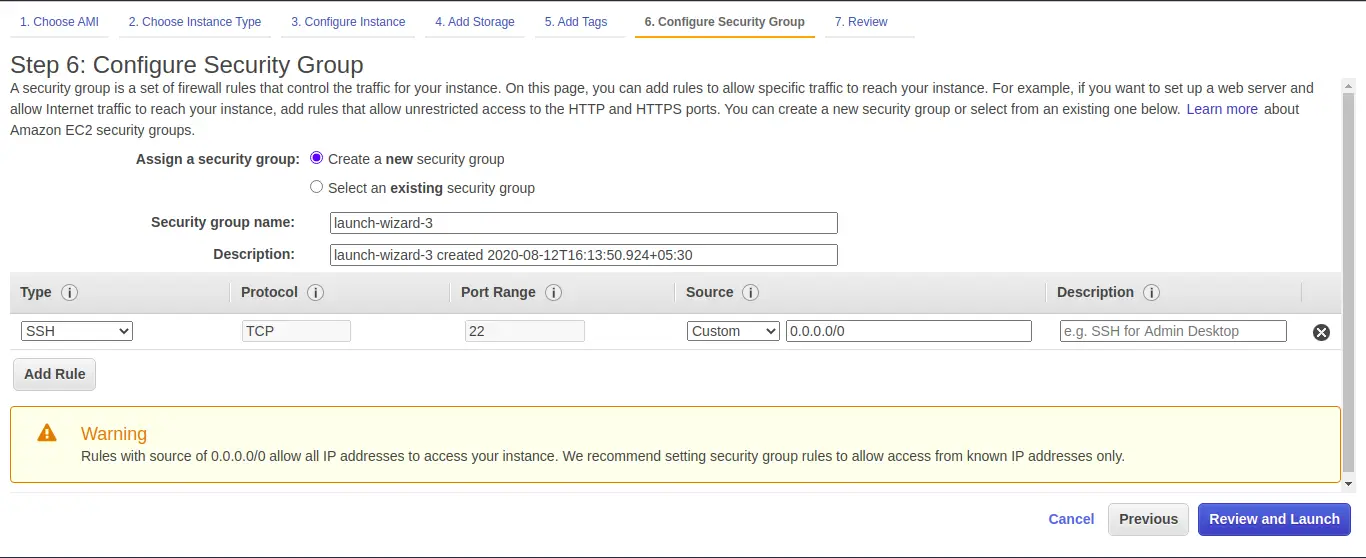
Configure Security Group (Please make sure you have SSH port 22 open in the security group) & click on Next
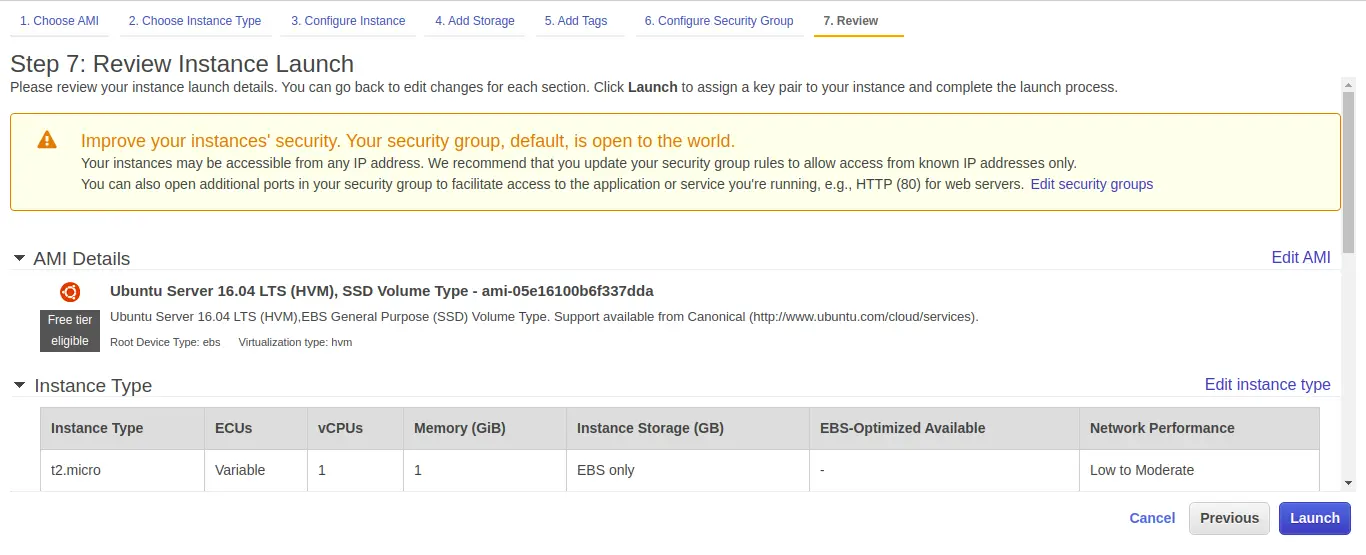
Review instance Launch & click on Launch
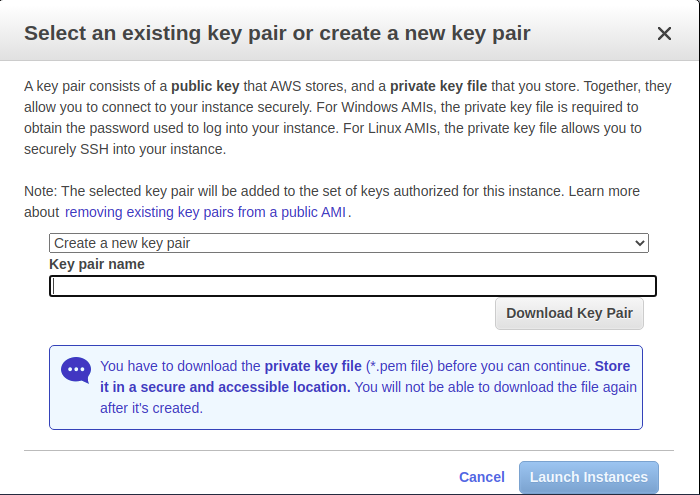
Select an existing key pair or create a new key pair & Click on launch instance
If you are fairly new to AWS environment, you should know “how to launch an EC2 instance in AWS”.
SSH into the server
	$ chmod 400 new_keypair.pem #if you have a new key pair
	$ ssh -i new_keypair.pem ubuntu@public_ip_address

By update and upgrading the server you will get the latest packages and versions to install in the server.
$ sudo apt update && sudo apt upgrade -y

install the default Java Runtime Environment (JRE), which will install the JRE from OpenJDK.
$ sudo apt install default-jre

You may need the Java Development Kit (JDK) in addition to the JRE in order to compile and run some specific Java-based software.
$ sudo apt install default-jdk

To verify that java has installed completely
$ java -version
Output

And it’s done. Since Java is already installed, you might want to know about how to install Jenkins in Ubuntu on an AWS server.


As a Director of Eternal Web Private Ltd an AWS consulting partner company, Nirav is responsible for its operations. AWS, cloud-computing and digital transformation are some of his favorite topics to talk about. His key focus is to help enterprises adopt technology, to solve their business problem with the right cloud solutions.
Have queries about your project idea or concept? Please drop in your project details to discuss with our AWS Global Cloud Infrastructure service specialists and consultants.